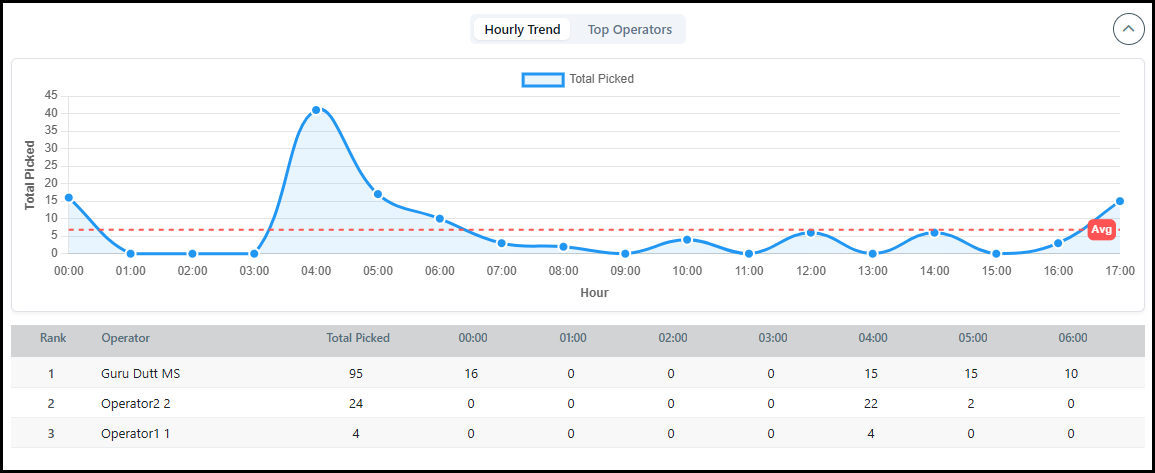
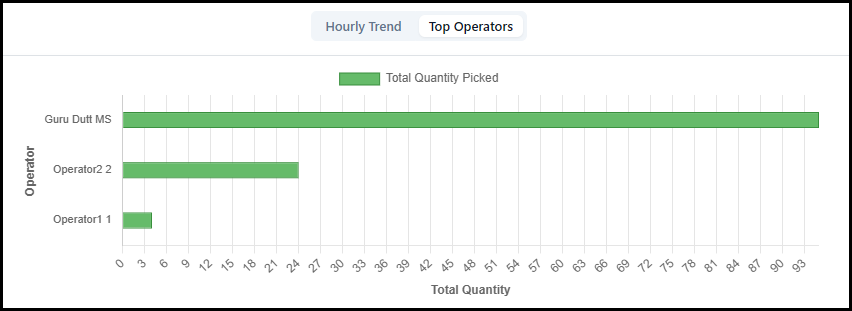
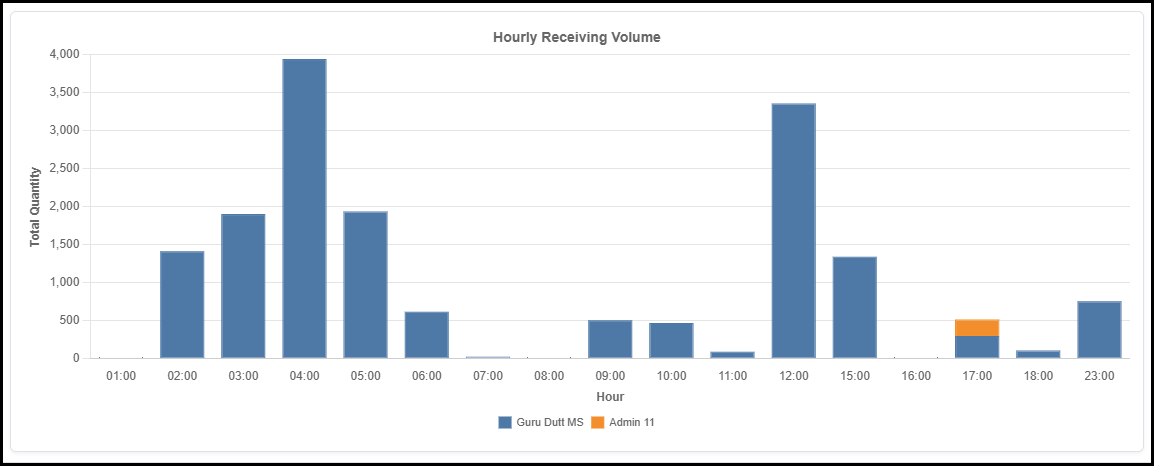
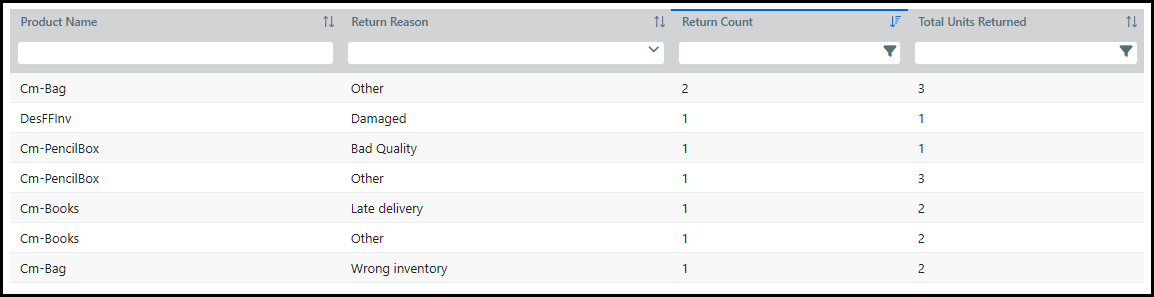
The Fulfillment Dashboard tracks user performance across common fulfillment workflows and inventory operations. It provides managers and team leads with real-time and historical data to monitor efficiency and identify trends.
There is no Picker user type, so the dashboard tracks users, or employees, based on actions within MarketDirect Fulfillment or Mobile Fulfillment.
The Fulfillment Dashboard contains a group of settings and options designed to search, filter, and optimize the available fulfillment data.
To access the dashboard go to Administration > Dashboard. The Dashboard Controls are available in the header.
1 Choose the Dashboard Type from the drop-down list.
2 Select dates to filter the table or graph from the Calendar.
3 Click Run to refresh the data in the table or graph.
Dashboard data will automatically update when settings or filters are changed. The Run setting will refresh data that may change during a viewing session.
4 View General Tracking Metrics for the specific Dashboard Type.
5 Toggle between the Table and Graph view.
6 Click the Export icon to download a CSV of the data.
The CSV will contain the columns and rows visible in the currently selected view (Table / Graph).
The Fulfillment Dashboard includes four dashboard types representing key data points for any warehouse operation.

 Picker
Performance
Picker
Performance