Revisions allow administrators to track and automate inventory management for different versions of a Fulfillment product. Once enabled, any changes to product information can be saved as a new numbered revision instead of overwriting the previous version. Each revision is stored within MarketDirect Fulfillment as a separate product, providing administrators with a clear record of which version was used to fulfill an order. The inventory of those previous versions is automatically managed by Revision Rules.
This topic will refer to the first product in a series to enable Revisions as the base product. All subsequent versions of the product will be referred to as revisions.
1 Go to Administration > Products.
2 Create a new FF-Inventory product or edit an existing one.
The product must be saved before Revisions can be enabled.
3 Select the Revisions toggle in the Inventory Rules section of the Inventory tab.
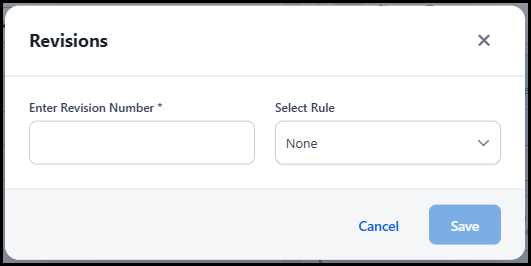
4 The Revisions window will open the first time you enable it for the base product.
5 Enter a Revision Number for the base product.
The Revision Number can be alphanumeric, but it must end in a number.
6 Choose a Revision Rule from the Select Rule drop-down list. The Revision Rule is designed to automate inventory management functionality when subsequent revisions are created.
MarketDirect Fulfillment recommends you choose the same Revision Rule for all revisions of the same product to ensure the rule works properly. The Revision Rule will not take effect until a second revision of the product is created. For details and examples of each rule, see Revision Rules.
7 Click Save.
The Revisions tab
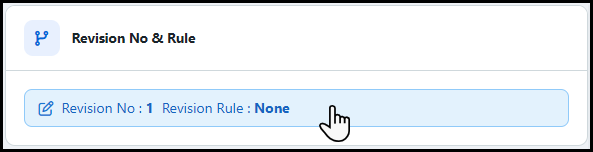
will now appear on the Product Information page. Also, the Revisions No & Rule section
will appear on the Inventory tab. It shows the Revision
Number and Revision
Rule assigned to this product.
You can click the display to edit the Revision
Number and Revision
Rule.
1 Open the Revisions tab.

2 Click Create Revisions to open the Create Revisions window.
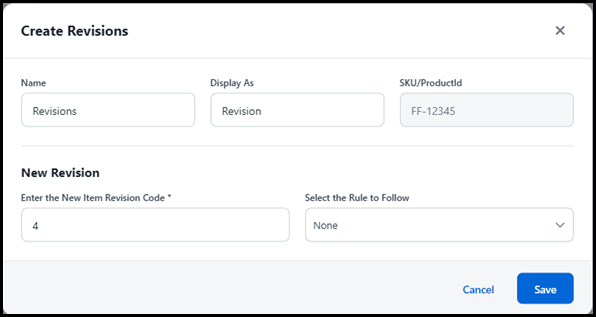
3 MarketDirect Fulfillment recommends completing the Create Revision fields in the following order:
● Enter the New Item Revisions Code: Enter a Revision Number that is unique to this product.
For example, the Revision Number 1 can exist for multiple products, but not for multiple revisions of the same product.
● Select the Rule to Follow: Choose the Revision Rule from the drop-down list.
MarketDirect Fulfillment recommends you choose the same Revision Rule for all revisions of the same product to ensure the rule works properly. When a new revision is created, the Revision Rule for the previous revision will go into effect.
● Name: By default, the name will auto-populate with the name of the revised product, a hyphen, and the Revision Number. You can edit this to a unique product name.
For example, if you create a new revision for a product named Blue Hat and assign it the Revision Number 2, the default Name of the product will be Blue Hat-2. If you create Revision Number 3 from the Revisions tab of Blue Hat-2, the default Name will be Blue Hat-2-3.
● Display As: By default, this field will auto-populate to the Name of the base product. You can edit this to a unique name that will be visible to buyers.
● SKU/ProductId: The unique SKU/Product ID for the base product. This code will be same for all revisions related to the base product.
4 Click Save. This revision will be an exact duplicate of the revised product, except for the Name and existing inventory.
The second revision will always be a revision of the base product. Any subsequent revisions can be of the base product or another revision. For example, you can create Revision 3 from Revision 2 instead of using the base product, or Revision 1. The Revision 3 product will be a duplicate of Revision 2, which was a duplicate of Revision 1.
The Revisions table is populated with the information for all revisions related to the same base product. The specific revision will be hi-lighted in the table. Administrators can track, delete, deactivate, and even open other revisions from the table.
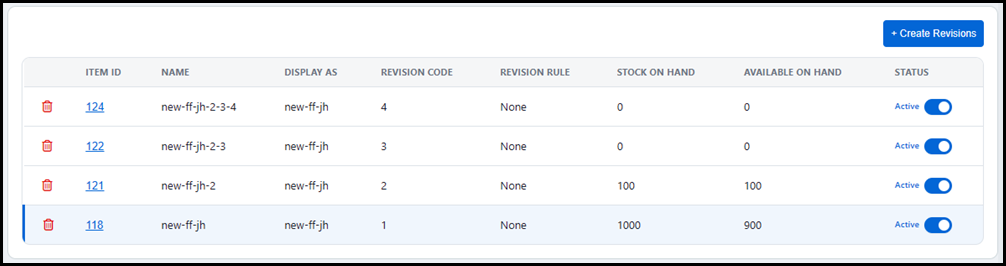
● Delete: Click the Trash can icon to delete the revision.
● Item ID: Unique, system-generated identifier for the revision.
Each new revision is given a unique Item ID, because they are considered new Fulfillment products. You can click the Item ID link to open the Product Information page for that revision.
● Name: Name of the product revision.
By default, this field will auto-populate with the name of the revised product, a hyphen, and the Revision Number.
● Display As: Name for the product revision that will be visible to the buyer.
By default, this field will auto-populate to the Name of the base product.
● Revision Code: The Revision Number assigned to the revision.
● Revision Rule: The Revision Rule assigned to the revision.
● Stock on Hand: Total quantity of the product currently in inventory.
● Available on Hand: Quantity available for new orders. This quantity is calculated by subtracting Reserved and Damaged inventory from the Stock on Hand.
● Status: Select the toggle to make the product Active or Inactive. Active products are available for ordering once published to a storefront.
Revision Rules automate inventory management for the product they are assigned. These rules are intended to be applied uniformly for all revisions related to the same base product.
● None: There is no automated inventory management applied to the product. Each revision starts as an active product that does not effect the revised product.
For example, you sell a graphic tee that gets a new design designated as Revision 2. The original design, or Revision 1, is still available for customers, and differs from Revision 1 by display name and description only.
● Discontinue & Replace: When a new revision is created, the revised product is no longer available for picking. Every order for the product, including orders for previous revisions placed before the new revision was created, is fulfilled using the newest revision of the product.
For example, you print a business card with the wrong phone number for your company. A new business card is printed and designated as Revision 2. The original business card, or Revision 1, is discontinued and all new and existing orders are fulfilled using the Revision 2 business card.
● Exhaust Old First: Orders are fulfilled using the oldest revision until that product runs out of stock, then automatically fulfilled using the next revision. Orders are never split between revisions, so if an older revision does not have enough inventory, then the whole order is fulfilled using the next revision with enough inventory. The inventory for bypassed revisions is still available for smaller orders. If no revision can handle the order requirements, then the order will be fulfilled using the newest revision.
For example, you sell toasters and the packaging gets updated with a new design designated as Revision 2. The existing inventory in the original packaging, or Revision 1, is still usable, so you decide to sell off that inventory first.
● Old Revision for Pending Orders Only: When a new revision is created, pending orders will be fulfilled using the revision they were placed against. Any new orders are exclusively fulfilled using the inventory of the new revision.
For example, you print a safety label that gets updated mid-quarter for a compliance change. The new label, designated Revision 2, is shipped out to any new orders, but the original label, or Revision 1, is still shipped out to pending orders placed when it was correct.