
Fulfillment products can be assigned to Lots when inventory is received. Lots are a batch of products with similar characteristics that are tracked together in order to simplify product traceability in case of recalls or quality issues. They also support inventory control by associating products with unique Lot numbers. The pharmaceutical industry will often use Lots to track the manufacturing, packaging, and expiration of different medicines.
1 Go to Administration > Products.
2 Create a new Fulfillment product, or click the Name of the Fulfillment product you want to edit.
3 Open the Inventory tab.
4 Enable the Lot's toggle in the Inventory Rules section.
This setting will be disabled if the product already has existing inventory. MarketDirect StoreFront recommends enabling Lots when you initially create the product.
1 Go to Administration > Receive Inventory.
2 Define the receipt of inventory and click the Add Skid button.
3 Choose a Default Pick Location for the inventory and click Save Receive.
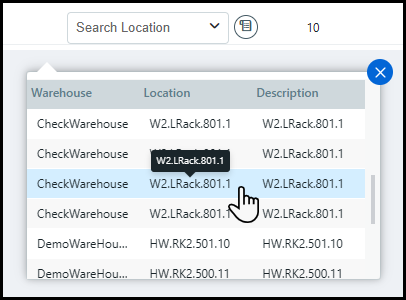
For more information on how to receive inventory into MarketDirect Fulfillment, see Receive items into inventory.
4 Complete the necessary fields in the Lot Tracking window.
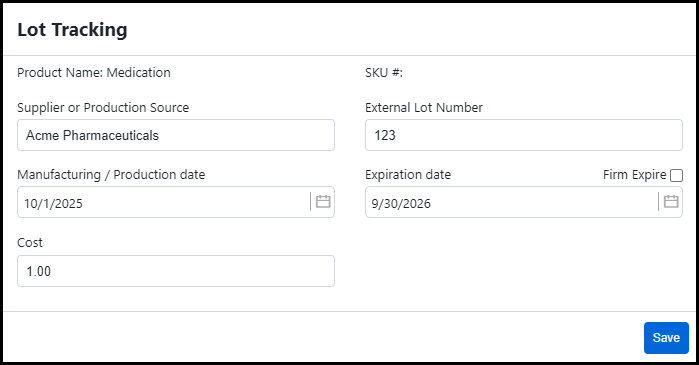
● Product Name: This field will be auto-populated with the product name.
● SKU#: This field will be auto-populated with the product SKU number.
● Supplier or Production Source: Enter the supplier or manufacturer of the inventory.
● External Lot Number: Enter the lot number provided by the supplier or manufacturer.
Each Lot will have two identifying numbers. The External Lot Number is entered by the administrator and can be anything they want. The Lot Number is a unique identifier auto-generated by MarketDirect Fulfillment.
● Manufacturing/Production date: Choose the manufacturing date of the inventory from the calendar.
● Expiration date: Choose the expiration date of the inventory from the calendar.
● Firm Expire: Enable this check-box to prevent expired inventory from being picked.
● Cost: Enter the purchasing cost per item for the warehouse.
5 Click Save.
6 Close the Inventory Received Successfully window.
1 Go to Administration > Lot Management.
2 Click Search Product to open the Find Product window, enter a barcode into the Scan Product Barcode field, or scan a product barcode to automatically open the Lot Management page for that product.
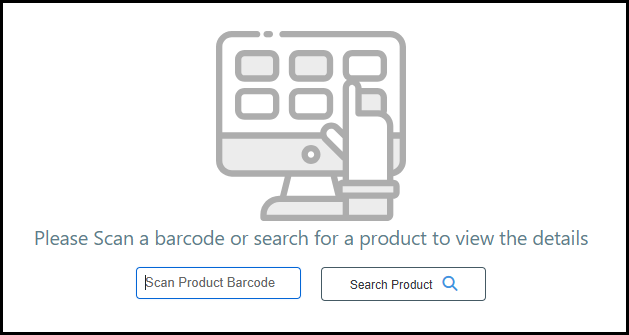
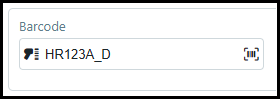
Barcodes are associated
with products on the Inventory tab of the Product Information page.
3 Only Fulfillment products enabled for Lots will appear in the Find Product window. Search, sort, and/or filter different columns to find the appropriate product.
4 Click the appropriate row to open the Lot Management page for that product.
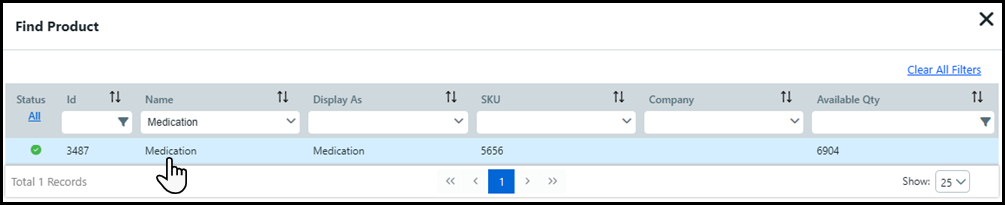
5 You can review important information about the Lot enabled product from the following sections:
The Product Information section provides information about the product.
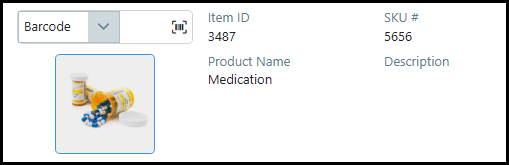
Item ID: Unique identification number auto-generated by MarketDirect StoreFront.
SKU #: Stock keeping unit entered during product creation for inventory tracking.
Product Name: Name of the product.
Description: Brief description of the product.
The General Inventory section provides information on the entire inventory of the product.

Stock on Hand: Total quantity of the product.
Reserved: Quantity of the product reserved for an order. Reserved products are part of an order that is placed but not yet shipped.
Damage: Quantity of the product marked as damaged by the administrator. These products will not be sold to a buyer.
Expired: Quantity of the product that is expired. Only lots with a Firm Expire date will contribute to the Expired quantity. These products will not be sold to the buyer.
An Expired inventory tracker for Lot enabled products is also available on the Product Information header, Manage Inventory table, Kitting Products page, and Mobile Fulfillment.
Available on Hand: Quantity of the product available for new orders. This quantity is calculated by subtracting Stock on Hand from Reserved and Damaged quantities.
On Order: Quantity of the product to be produced. On Order quantity often refers to a PO raised by an MIS, or kits to be assembled.
Creation Date: Date the product was created.
Last Modified On: Date the product was last edited.
The Lot Management table provides information about each Lot associated with the product.

● Lot Number: Unique lot identifier auto-generated by MarketDirect Fulfillment.
● Supplier or Production Source: The supplier or manufacturer of the inventory.
● External Lot Number: The lot number entered by the administrator.
● Manufacturing/Production date: The manufacturing date of the inventory.
● Expiration date: The expiration date of the inventory.
● Cost: The purchasing cost per item for the warehouse.
Click the down caret in the appropriate row of the Lot Management table to reveal details about each skid in the Lot.
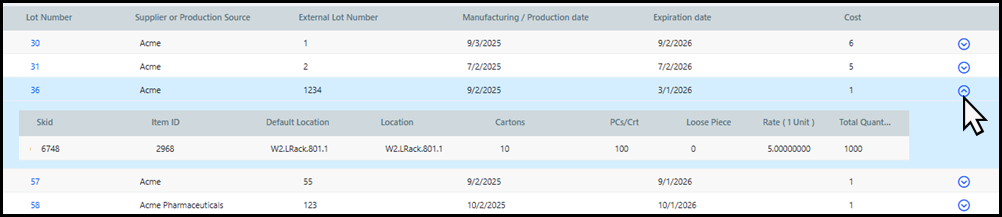
● Skid: The identification number of the product skid.
● Item ID: The product's item identification number.
● Default Location: The default warehouse location configured on the Inventory tab of the product builder.
● Location: The specific location in the warehouse where the skid is stored.
● Cartons: The number of cartons in the skid.
● PCs/Crt: The number of pieces or boxes per carton.
● Loose Pieces: The number of loose items in the skid.
● Rate: The cost per unit of measurement (e.g., per item, or Each), which will be used to calculate the Average Cost on the product Pricing tab.
● Total Quantity: The total quantity of inventory available on the skid.
6 You can edit Lot information by clicking the Lot Number to re-open the Lot Tracking window.
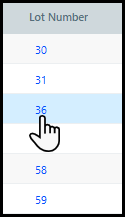
7 Make any necessary edits and click Save.
1 Go to Administration > Fulfillment Reports.
2 There are two Lot reports available for MarketDirect Fulfillment:
● Inventory Lot Detail: This report provides basic information on the lot such as Lot Number, SKU, and Display Name.
● Inventory Lot Utilization: This report provides details on the lot inventory such as Reserved, Damaged, and Used Quantity.
3 Select the appropriate report.
4 Enter an SKU number and/or External Lot Number into the Preview Parameters to retrieve Lot information.
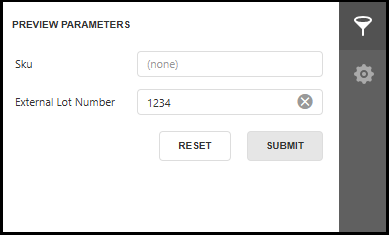
You can only enter a single value into each field, or the report will provide zero results.
5 Click Submit.
For more information on Fulfillment reports, see Generate fulfillment reports.