Each country has an associated unit system and phone number format. The unit system is the standard units in which weight and length are measured (e.g., most of Europe in on the System International, the United States is on the U.S. System (known outside the U.S. as the Imperial System), and the United Kingdom is on the Imperial + Metric System. MarketDirect StoreFront ships with default values for these systems but a site administrator may decide to change the unit system. MarketDirect StoreFront supports many countries, and the “Countries” page provides administrators with the means to change (1) the unit system for a country and (2) the format for phone number.
The unit system settings determine the unit that is shown to a buyer on the site. For instance, an administrator in the U.S. can enter the weight of a product in pounds (lb), but a buyer viewing the product details in a country on the System International will see the weight in kilograms (kg). The system handles all conversions between unit systems.
For information on setting the unit system for the site, see Unit System Tab.
To select the unit system and telephone number pattern associated with a country
1 Go to Administration > Countries.
2 Scroll down to the country you want to assign to a unit system.
3 To display all the supported unit systems, click No Preference and review the measurement standards for each of the supported systems.
No Preference is the default system, which contains all the units the system supports.
4 Click Edit.
5 From the Unit System drop-down list, choose the unit system for the country:
● Systeme International
● UK (Imperial) System
● US System
6 In the Phone Number Pattern (Advanced) field, enter the phone number pattern using a regular expression (or regex).
For example, the regular expression for the U.S.
phone number format (000) 000-0000 is the following:
^\(?\s?\+?\s?\d{3}\s?\)?[
-]?\d{3}[ -]?\d{4}$
This expression is entered for the United States by default.
For more information on regular expressions, see A Quick Reference on Regular Expressions.
7 In the Displayed Pattern field, enter the displayed pattern (e.g., for the U.S. phone number type (000) 000-0000).
8 (If you are using the VAT taxation model) In the VAT Number Pattern field, enter the regular expression for the VAT number (for companies that are not members of the European Union).
Within the European Union the VAT number
is validated against the European Commission Web Service. For countries
that are not
members of the European Union, the VAT number can be validated against
a regular expression set at the countries level. You can set the regular
expression for the VAT number in various countries on the Countries page.
For more information on the VAT taxation model in MarketDirect StoreFront,
see VAT
Taxation Model for Cross Border VAT Taxation.
9 In the Postal Code Pattern (Advanced) field, enter the postal code pattern using a regular expression.
For example, the
regular expression for a US zip code that is 5-digits
or 9-digits with optional dash after 5 digits is the following:
^\d{5}((\-|\s)?\d{4})?$
This expression is entered for the United States by default.
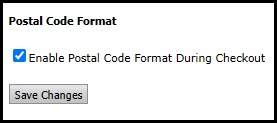
To enable a validation of the postal code
on the buyer side, select the Postal
Code Format check-box in the
Basic Settings tab
of the Site Settings page.
10 Click Update to save changes or click Cancel to quit editing without saving your changes.