
 2Checkout (United
States)
2Checkout (United
States)Follow the steps below to configure your merchant account(s) in MarketDirect StoreFront:
1 Establish an Account with a Supported Payment Gateway and Gather Needed Setup Information
2 Set up a Merchant Account in MarketDirect StoreFront
3 Test the Merchant Account
4 Assign a Merchant Account to a Print Shop
Before setting up your account in MarketDirect StoreFront:
(1) Establish your merchant account with one of the following supported merchant accounts:
● 2Checkout (United
States)
● Alipay (China)
● Authorize.net (United
States)
● Authorize.net-Accept
Hosted (United States)
● Braspag-Pagador (South
America)
● CardConnect (United
States)
● CyberSource
Rest API (United States)
● CyberSource Secure Acceptance
(United States)
● DataTrans (Europe)
● DPO (West Africa)
● E-xact (North America)
● First Atlantic Commerce
(United States)
● iPay88 (Malaysia)
● Pagadito (Latin America)
● PayGate/DPO-SA
(South Africa)
● PayPal (United States)
● PayPal Payflow Pro
(self-hosted)
● PayPal
Payflow Pro Hosted (Payflow Link) (hosted solution)
● PayU (Europe)
● PayU (Latin America)
● PxPay (Australia)
● SecurePay (Australia)
● Stripe
(International
For a complete list of countries supported by Stripe, visit https://stripe.com/global.
● USAePay (United States;
for PrintSmith Vision-integrated sites)
● Worldline
(Europe)
● Worldpay (Europe)
● WPM (United Kingdom)
For information on setting up Digital Server Certificates see Digital Server Certificates.
(2) Read the following notes for the supported payment gateway(s) you will be using to process credit orders in MarketDirect StoreFront so you can be sure you have the required information on hand during account setup in MarketDirect StoreFront.
1 In MarketDirect StoreFront go to Administration > Credit Card Management and Configuration > Merchant Accounts.
2 On the Merchant Accounts page, select the payment gateway for the merchant account you are creating from the drop-down list.
3 Click Add New Account.
4 Type a descriptive name for the account in the Account Name field.
This is not your merchant account username but a descriptive name of your choice for identifying the account in MarketDirect StoreFront.
5 Click Add New Account again to open the merchant account setup page.
6 In the Payment Gateway Information section:
● Host Address: the web address (URL) for the payment gateway (e.g., that MarketDirect StoreFront’s credit card module will contact to sync up with the payment gateway’s processing software to process transactions made on this merchant account in MarketDirect StoreFront).
This field will typically auto-populate.
For PayGate account holders: Enter the Initiate endpoint URL, which is available in the Endpoints section of the PayWeb 3 tab on https://docs.paygate.co.za/.
● API Endpoint URL: the web address (URL) for the payment gateway (e.g., that MarketDirect StoreFront’s credit card module will contact to process transactions made on this merchant account in MarketDirect StoreFront).
For CardConnect account holders: Enter the URL you received from CardConnect when you established your account.
● Demo Host Address: the web address (URL) for the payment gateway that is used for testing the payment gateway.
This
field will typically auto-populate.
For PayGate account holders: Enter
the Initiate endpoint URL, which
is available in the Endpoints section
of the PayWeb 3 tab on https://docs.paygate.co.za/.
● API Host Address, Host Address URL, Hosted Page URL, Payment Form URL: the web address (URL) for the payment gateway (e.g., that MarketDirect StoreFront’s credit card module will contact to process transactions made on this merchant account in MarketDirect StoreFront).
The field you see will depend on which
merchant account you are configuring.
In some cases, this field will auto-populate with the appropriate host
address for the payment gateway.
For CardConnect account holders:
Enter the URL you received from CardConnect when you established your
account.
For PayGate account holders: Enter the Redirect
endpoint URL, which is available
in the Endpoints section of the PayWeb
3 tab on https://docs.paygate.co.za/.
● API Demo Address, Demo Host Address URL, Demo Hosted Page URL, Payment Form Demo URL: the web address (URL) where transactions made when the system is in demo mode will be processed (used for testing transactions processed through the payment gateway).
The field you see will depend on which
merchant account you are configuring.
In some cases, this field will be auto-populate with the appropriate host
address for the payment gateway.
For PayGate account holders: Enter the Redirect
endpoint URL, which is available
in the Endpoints section of the PayWeb
3 tab on https://docs.paygate.co.za/.
● Demo API Endpoint URL: the web address for the demo test account.
For CardConnect: You need not change the default value.
● IP addresses allowed to call Webhook URL—(For CardConnect and DataTrans only): This is the IP address from which MDSF gets the response from CardConnect or DataTrans. You need not change the default value for this field unless the IP changes and you need to update it.
MarketDirect StoreFront will receive responses only from this IP for security purposes. Multiple IP addresses can be provided as comma-separated list if required.
● Is Paypal: Check this box to enable support of PayPal checkout.
7 In the Account Information section:
● Account Name: Enter the unique name by which you will identify this merchant account.
● Description: Enter a brief description of the account (e.g., PrintCo-Baltimore).
● (Required) Currency: Enter the 3-letter ISO code (e.g., USD) for the currency in which transactions will be made in this merchant account.
The merchant account currency must match the site currency standard if the account is enabled. For more information, see Configure Pricing Settings. Thus, if your site currency is INR your payment gateway currency should also be INR.
● Enabled: Check this box to enable the account or leave it unchecked to leave the account disabled.
● ISO Numeric Currency Code—(For First Atlantic Commerce only): Enter the 3-digit ISO code (e.g., 840 for USD) for the currency in which transactions will be made in this merchant account.
● Display CVV—(For Braspag Pagador only): Check this box to prompt users to enter the CVV number associated with their selected payment card.
● Enable Sale Transaction—(For DataTrans, SecurePay, Stripe, and Worldline only): Check this box to have the system perform sales transactions instead of the default Authorization and Delayed Capture model. If a sales transaction is performed, the amount will be sent to the merchant immediately, and when the order is completed capture will not be called from MarketDirect StoreFront.
When using Do Sale Transaction, do not add a buffer amount because there is no way to return the buffer amount to the buyer.
● Enable FraudGuard Service—(For SecurePay only): Check this box to enable SecurePay's FraudGuard service.
● Is Paypal Supported—(For PayPal Payments Pro only): Check this box to enable support of PayPal checkout.
● Enable TLS12—(For PayPal Payment Pro and SecurePay only): This box should be selected to enable MarketDirect StoreFront to use PayPal's enhanced security measures implemented in 2016.
● Shared Secret—(For Worldpay only): Enter the MD5 secret for transactions.
8 In the Credit Cards Accepted section:
● Select all credit cards you want to accept as payment with this merchant account.
Payflow
Pro Hosted merchant account setup: You can disregard these credit
card fields as they will be handled in the PayPal Manager (https://manager.paypal.com).
However, you might want to enable at least one credit card type to test
your configuration.
For CyberSource Hosted merchant account
setup: The credit cards will be configured at the CyberSource site.
For Braspag Pagador setup:
You cannot select more than one
club per card type (e.g., you cannot have both
Visa
Cielo and Visa Banorte). You can, however, select different
cards of the same account (e.g., Visa
Cielo, MasterCard Cielo, Diners Club Cielo,
etc.).
The Account Setup (Mandatory Fields) will vary based on the type of merchant account you are setting up.
For
2Checkout merchant accountsFor
AliPay merchant accountsFor
Authorize.net merchant accountsFor
Authorize.net-Accept Hosted merchant accountsFor
Braspag Pagador merchant accountsFor
CardConnect merchant accountsFor
CyberSource Rest API merchant accountsFor
CyberSource Secure Acceptance merchant accountsFor
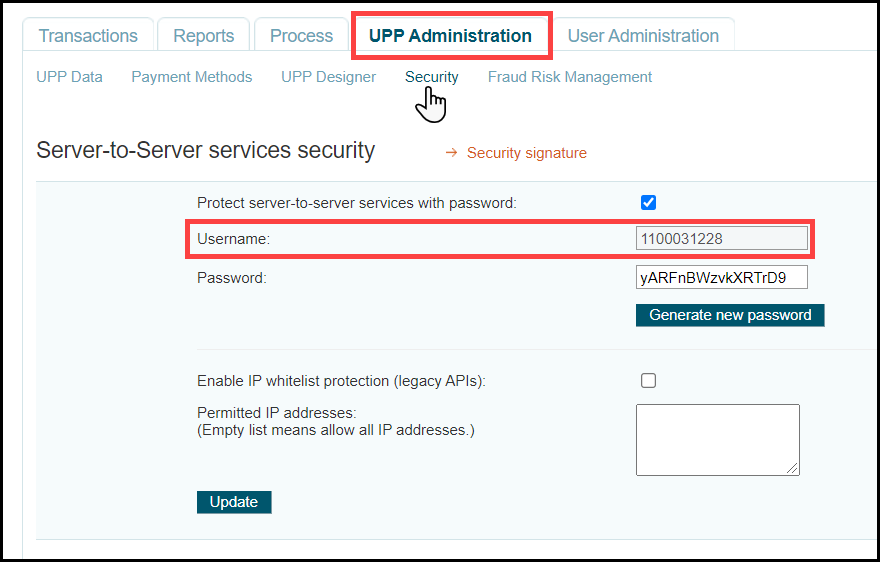
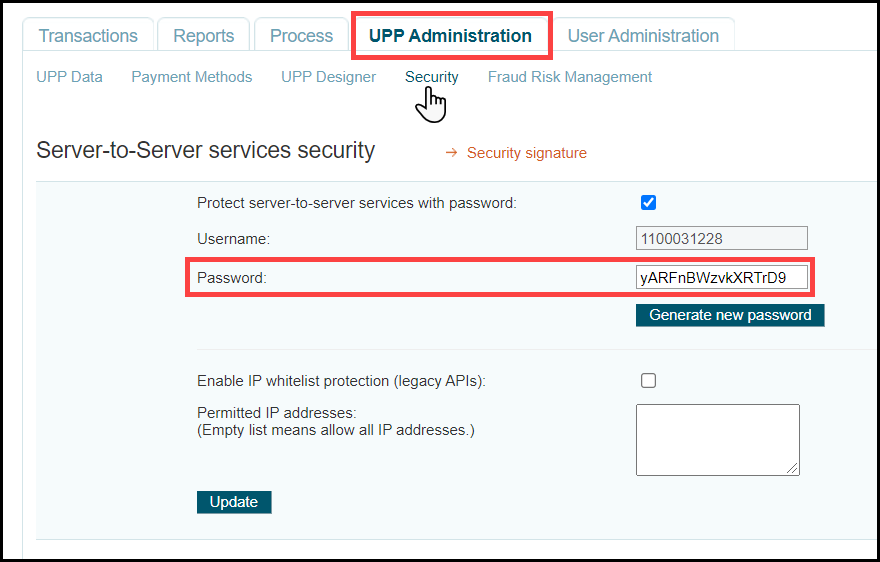
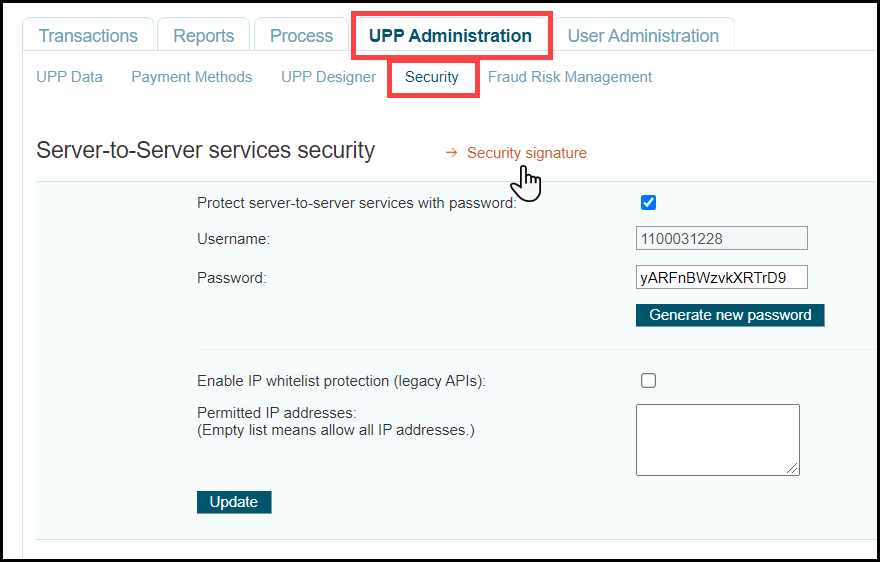
DataTrans merchant accountsFor
DPO merchant accounts For
E-xact merchant accountsFor
First Atlantic Commerce merchant accountsFor
iPay88 merchant accountsFor
Pagadito merchant accountsFor
PayGate/DPO-SA merchant accountsFor
Payflow Pro and Payflow Pro Hosted merchant accountsFor
PayPal Payments Pro merchant accountsFor
PayPal Complete merchant accountsFor
PayU (Europe) merchant accountsFor
PayU (Latin America) merchant accountsFor
PxPay merchant accountsFor
SecurePay merchant accountsFor
Stripe merchant accountsFor
USAePay merchant accountsFor
Worldline merchant accountsFor
Worldpay merchant accountsFor
WPM Hosted merchant accounts3.
Test the Merchant Account4.
Assign a Merchant Account to a Print ShopRemove
a Merchant Account and enable the currencies each card
type will support.
and enable the currencies each card
type will support.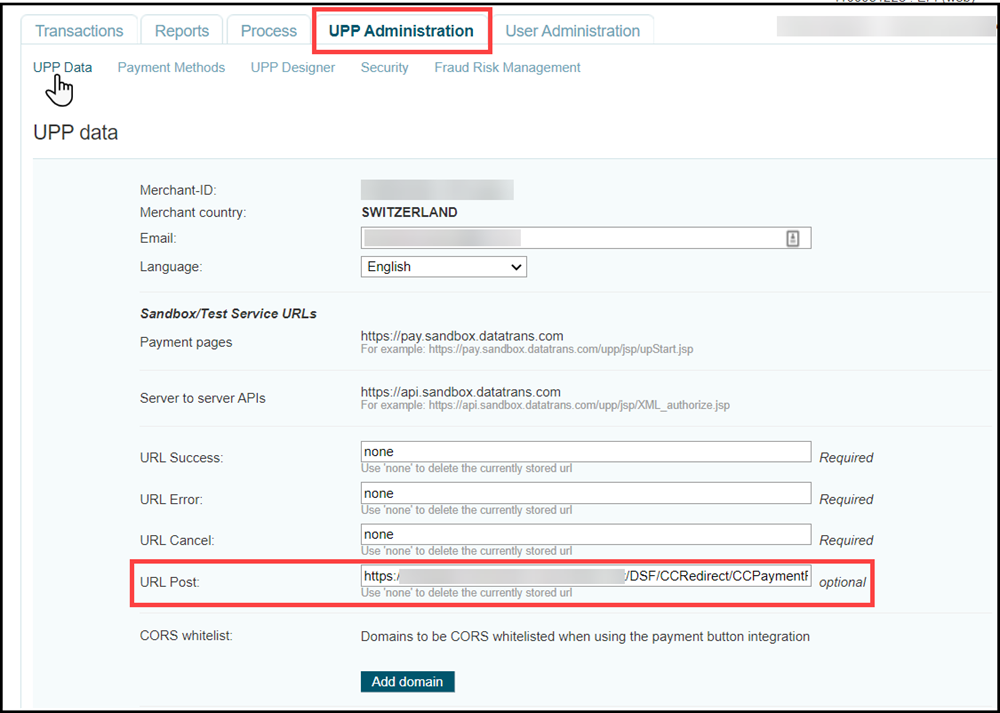
 for the account to open the
account profile page.
for the account to open the
account profile page.